
Introduction to Cloudflare AI Gateway
Today, I am continuing my deep-dive into every aspect of the Cloudflare Developer Platform by getting to grips with the AI inference capabilities of the platform. To do this, I’ve written a small AI Chat app that you can quickly deploy to your own Cloudflare dashboard if you like. Let’s take a look at some of the learnings today.
My intent with todays investigation was to make an app that looks like one of the many public AI chat systems. I think that Google Gemini looks “the best” of the several I have looked at in the recent past, so that was the aesthetic I was going for. I also wanted:
- Private chats - no data should go outside the chat system.
- Per user cost analysis - users should know what their spend is.
- Selectable models.
Cloudflare services
Aside from the basics (Workers, D1, Cloudflare Access - all of which I covered in my last article), I needed two services to support my application, although I only set one of them up - the other came for free.
Workers AI
Cloudflare Workers AI is serverless GPU inference at the edge. The best way to think about it is as a “managed AI runtime” that lives within the same V8 isolate environment as your Cloudflare workers. Workers AI (the AI binding) routes your request to a specialized GPU cluster - something you don’t have to know or care about. Instead of managing a GPU cluster along with some model runner like vllm or ollama, you call a pre-warmed model directly from your code.
Workers AI is presented as a binding to your worker. This means the model isn’t an external HTTP endpoint that you have to fetch, nor do you have to deal with authentication or protecting an endpoint. It’s an environment variable injected into your worker. To get AI inference, you add the following to your wrangler.jsonc file:
  // Workers AI binding (standard)
  "ai": {
    "binding": "AI",
    "remote": true
  },
The “remote” setting is there to quiet a warning when you are running locally, because AI inference is always remote. By setting “remote” to true, you are saying “I know this is remote - don’t warn me about it”.
There are a huge number of models available in Workers AI - including top models from Mistral, Meta, and DeepSeek. In the chat system, I’m only using text generation models, but you have access to models for summarization, image generation and analysis, text embeddings, translation, and video capabilities.
AI Gateway
Cloudflare AI Gateway is a control plane that sits between your application and your AI providers. While Workers AI is the infrastructure for running models, AI Gateway is the proxy for managing them. The primary superpower of AI Gateway is Provider Abstraction. It allows you to interact with any model using a unified syntax. You can switch between calling external models (such as the models from Anthropic, OpenAI, or hyperscalers like Amazon Bedrock and Google Vertex AI) and Workers AI models easily. The only thing that changes in your code is the name of the model - not the code that interacts with the model.
Since you now have a proxy layer between your code and the inference engine, you can control and observe AI spend easily. Each call to the inference layer also returns usage (like tokens in and out) and cost (based on the underlying cost of the model). I’ve used this in the app to give the user a per-chat and per-message cost of the AI usage. This shows up in a banner at the top of the chat (for the per-chat numbers) and as an info block in the action bar of each chat message (for the per-message numbers).
AI Gateway does semantic caching of your inference calls. If a user asks a question similar to one asked recently, the Gateway returns the cached response from the edge without calling the AI provider at all.
Finally, you can set quotas to prevent “runaway” costs. If a specific API key or user segment hits a pre-defined dollar amount, the Gateway can automatically throttle or block further requests.
The Application
Here is the architecture for the application:
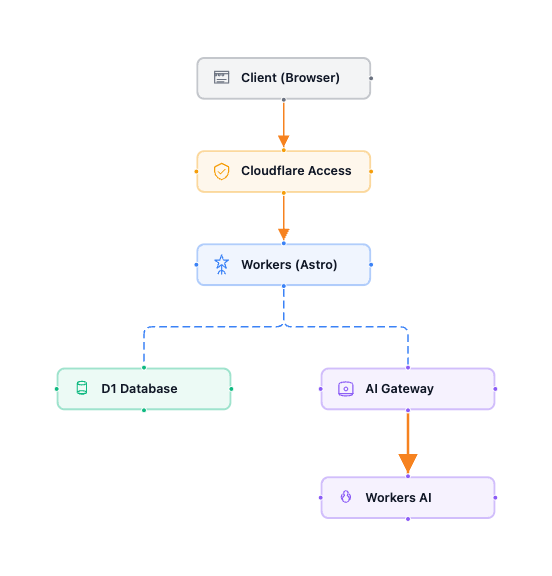
The only real addition to my prior architecture is the addition of the new services. You can easily add AI inference capabilities to existing apps.
So where were the challenges? Not too many today. The basic one was “how do I implement the AI chat UI?” For this, I used assistant-ui - it was easy to get OpenCode to write a basic React app incorporating this library for me and it came with a Gemini lookalike example, so getting the chat system to work was simple enough. While OpenCode (using Claude Opus 4.6 and GPT 5.4) handled developing the UI well, it struggled with the complexity of the message adapter schemas - a classic case of LLM context exhaustion that led to hallucinations. This required breaking the prompt into smaller, functional modules.
Other notes from this app
I worked quite a bit - both through OpenCode and by myself - on getting the deployment scripts “right”. I am now at the point where I can set up a Cloudflare API token for deploying code, create a .env file, and run pnpm run deploy.
Two things to watch out for in your Terraform code:
-
When creating the AI Gateway, ensure you turn authentication on. This doesn’t affect your application, but does affect who can access your AI Gateway directly. You don’t want to be leaking an open AI service to the Internet. Setting
authentication = truein your Terraform requires the client to pass a token.It This only matters when you want to call the AI Gateway from your locally running Worker. Here is the relevant block:resource "cloudflare_ai_gateway" "aichat" { account_id = local.account_id id = "${local.prefix}-aigw" authentication = true cache_invalidate_on_update = true cache_ttl = 0 collect_logs = true rate_limiting_interval = 0 rate_limiting_limit = 0 logpush = false } -
There are a couple of things that the Cloudflare Terraform provider suggests are optional but they aren’t really. For instance, the D1 resource allows you to set
read_replication. The provider notes suggest it’s optional, but it’s only optional on create operations. You MUST set it on update operations. This means you SHOULD set it on create operations:resource "cloudflare_d1_database" "aichat" { account_id = local.account_id name = "${local.prefix}-db" read_replication = { mode = "disabled" } }
I moved the Worker definition into the Terraform files. This means I can use terraform apply to create or update the infrastructure and I can run terraform destroy to tear the infrastructure down. I’m not left with dangling workers any more. The only thing left at the end is a deployment API token that I have to delete separately. I’ve also set up pnpm scripts in my package.json to remind myself of the normal things I can do.
I found the dotenv provider is incredibly useful for combining your Terraform setup with your Wrangler setup. You can use the same .env file for both. Within my main.tf file, I have the following to access the environment:
data "dotenv" "config" {
  filename = "${path.module}/../.env"
}

locals {
  env         = data.dotenv.config.env
  account_id  = lookup(local.env, "CLOUDFLARE_ACCOUNT_ID", "")
  prefix      = lookup(local.env, "RESOURCE_PREFIX", "aichat")
  tag         = lookup(local.env, "RESOURCE_TAG", "aichat")
  team_domain = lookup(local.env, "CLOUDFLARE_TEAM_DOMAIN", "")
  workers_dev = lookup(local.env, "WORKERS_DEV_SUBDOMAIN", "")
  idp_id      = lookup(local.env, "CLOUDFLARE_ACCESS_IDP_ID", "")
}
Each of the capitalized entries in the locals block is an environment variable pulled from the .env file. This shrinks the number of places I have to maintain variables and also reduces the number of steps I need to execute to get a functional deployment.
Final thoughts
This was really just dipping my toes into AI on Cloudflare - inference is the baseline functionality you have to understand. Next up, I’m going to take a look at what it takes to get an agent running on the Cloudflare platform and some agentic workflows.
Leave a comment